
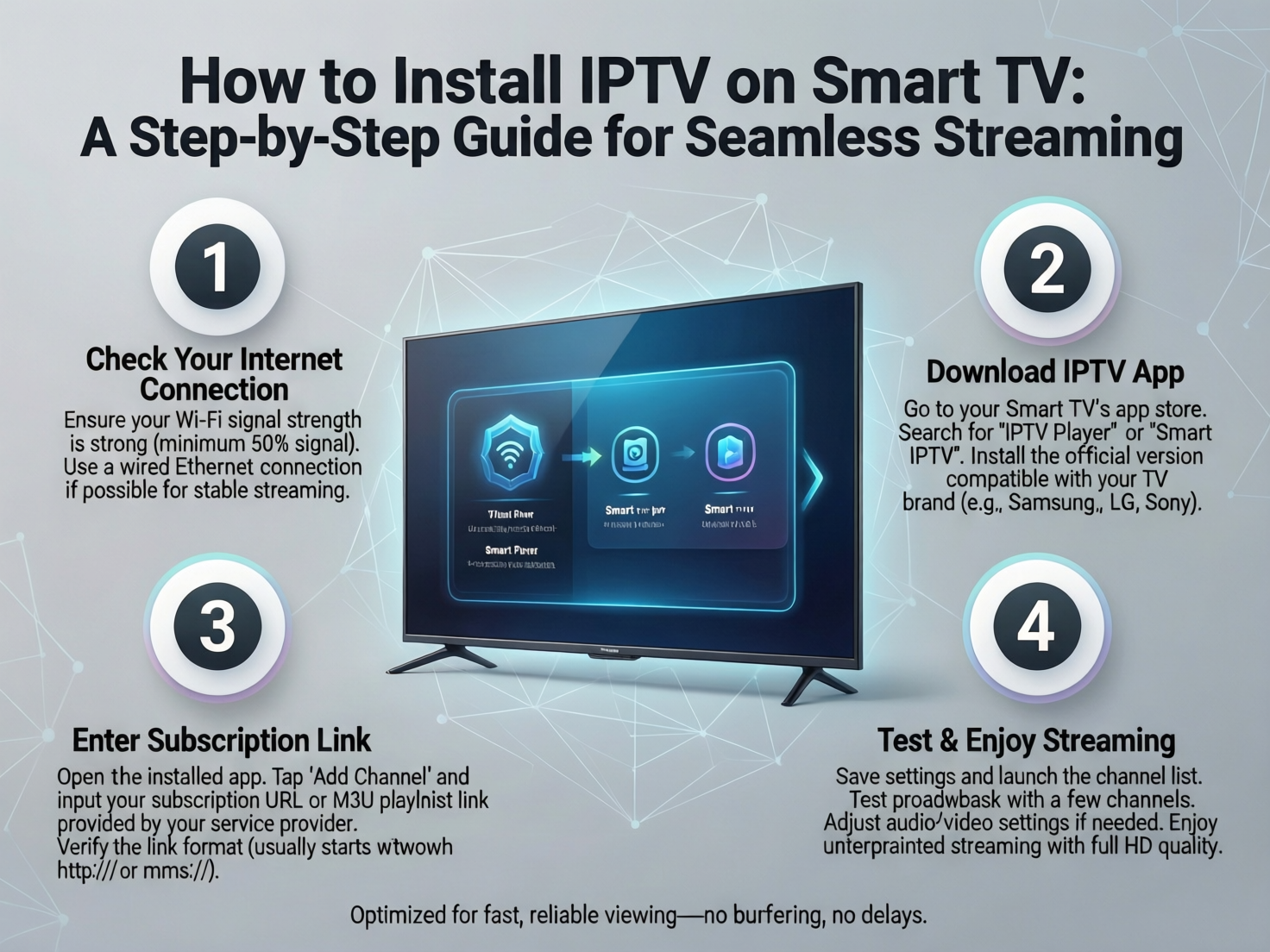
Tired of juggling multiple streaming apps? Imagine accessing live TV, sports, movies, and international channels—all in one intuitive interface on your big screen. Installing IPTV on your Smart TV unlocks a unified entertainment experience without extra hardware. In this clear, beginner-friendly guide, we’ll walk you through exactly how to install IPTV on Smart TV models safely and efficiently. Whether you own a Samsung, LG, Sony, or Android TV, you’ll find a reliable method below. Let’s get you streaming!
Before You Begin: Essential Requirements
✅ Stable high-speed internet (minimum 15 Mbps recommended)
✅ Active subscription with a legitimate, licensed IPTV provider
✅ Smart TV compatibility (check your TV’s OS: Android TV, Tizen, WebOS, etc.)
✅ Login details from your IPTV service (M3U URL, username, password, EPG link)
✅ Smartphone or computer (for screen mirroring or file transfer)
⚠️ Important: Only use IPTV services that legally license content. Unauthorized streams violate copyright laws and risk malware or service interruptions. A reputable provider ensures channel stability, customer support, and regular updates.
How to Install IPTV on Smart TV with Android TV/Google TV
Best for: Sony, Philips, TCL, Nvidia Shield TVs running Android TV OS
This method offers the smoothest native experience. Most Android TVs support direct app installation.
Step 1: Enable Unknown Sources
- Go to Settings > Security & Restrictions
- Toggle “Unknown Sources” ON (allows installation outside Play Store)
- Confirm the security warning
Step 2: Install a Trusted IPTV Player
- Open Google Play Store
- Search for a reputable IPTV player (e.g., IPTV Smarters Pro, TiviMate, Perfect Player)
- Download and install the app
Note: Avoid random APK files from unverified websites. Use official stores whenever possible.
Step 3: Configure Your Subscription
- Launch the IPTV app
- Select “Add New User” or “Load Playlist”
- Enter credentials provided by your IPTV service:
- Xtream Codes (Username, Password, Server URL)
- OR M3U Playlist URL
- Optional: EPG URL for program guide
- Save and refresh. Channels will populate instantly!
How to Install IPTV on Smart TV Using Media Players (Non-Android TVs)
Best for: Samsung (Tizen), LG (WebOS), older Smart TVs
If your TV lacks app flexibility, leverage built-in media players like VLC (available on most app stores).
Step 1: Install VLC Media Player
- Open your TV’s app store (Samsung Apps, LG Content Store, etc.)
- Search “VLC” and install
- Launch VLC and grant necessary permissions
Step 2: Load Your IPTV Playlist
- In VLC, go to Media > Open Network Stream
- Paste your M3U playlist URL (provided by your IPTV service)
- Click Play
- Save the playlist for quick access next time
💡 Pro Tip: Bookmark your playlist URL on your phone for easy copy-paste!
How to Install IPTV on Smart TV via Screen Mirroring
Universal method for ANY Smart TV with Miracast, AirPlay, or Chromecast built-in
No TV app installation needed! Stream directly from your phone.
- Connect devices to the same Wi-Fi network
- On your smartphone:
- Android: Open IPTV app > Tap cast icon > Select your TV
- iPhone: Open Control Center > Tap Screen Mirroring > Choose TV
- Launch your IPTV app on your phone—the stream appears instantly on TV
- Minimize phone screen; audio/video continues on TV
✨ Bonus: Use your phone as a remote! Pause, change channels, or adjust volume seamlessly.
Troubleshooting Common IPTV Setup Issues
| Issue | Quick Fix |
|---|---|
| Buffering/freezing | Restart router; check speed test; lower stream quality in app settings |
| Channels not loading | Verify playlist URL validity; contact IPTV provider for updated links |
| App won’t install | Update TV firmware; clear app store cache; confirm OS compatibility |
| No sound on TV | Check TV audio settings; restart IPTV app; test with another app |
Still stuck? Reputable IPTV providers offer dedicated setup support—don’t hesitate to reach out!
Why Your IPTV Service Choice Matters
A smooth install IPTV on Smart TV experience starts long before setup. When evaluating providers, prioritize:
🔹 Legal licensing (avoids shutdowns and legal risks)
🔹 EPG (Electronic Program Guide) for easy navigation
🔹 24/7 customer support with setup assistance
🔹 Free trial option to test compatibility with your TV
🔹 Regular updates for app stability and new features
Investing in a trustworthy service saves frustration and delivers consistent, high-quality streaming.
Conclusion: Your Big Screen Awaits!
You’ve now mastered how to install IPTV on Smart TV using multiple safe, effective methods. Whether you chose the native Android TV route, leveraged VLC, or used screen mirroring, you’re moments away from a richer viewing experience. Remember: success hinges on pairing these steps with a legitimate, well-supported IPTV subscription. Double-check your provider’s compatibility notes, keep your apps updated, and enjoy cinema-quality entertainment from the comfort of your couch. Happy streaming!
Frequently Asked Questions (FAQs)
Is it legal to install IPTV on my Smart TV?
Yes, installing IPTV apps is legal. However, only use services that legally license content. Avoid unauthorized streams—they violate copyright laws and risk security issues. Always choose a provider with transparent licensing.
Can I install IPTV on any Smart TV brand?
Most modern Smart TVs support IPTV via one of these methods: Android TV models allow direct app installs; Samsung/LG TVs work well with VLC or screen mirroring; all TVs with casting features support phone-to-TV streaming. Check your TV’s OS first.
Why does my IPTV buffer on Smart TV but not on my phone?
Buffering usually stems from Wi-Fi signal strength. Move your router closer to the TV, use a 5GHz band, or connect via Ethernet. Also confirm your IPTV provider isn’t experiencing server load—contact their support for regional server recommendations.
Do I need a Fire Stick if I install IPTV directly on my Smart TV?
Not necessarily! If your TV runs Android TV or supports robust apps like VLC, you can skip extra devices. However, dedicated streaming sticks (Fire Stick, Android TV Box) often offer faster processors, more app options, and smoother performance for heavy users.
How often should I update my IPTV app?
Update whenever a new version releases—typically monthly. Updates fix bugs, improve compatibility with TV firmware, and enhance security. Enable auto-updates in your app store settings for hassle-free maintenance.